Setup

From a stock Boox
to searching your own handwriting.

Six steps. The longest one is a download, and you only do it once. Everything below happens on your own hardware and your own wifi — there is no account to create, because there is no server to create it on.

Boox is the only device supported for live writing today

Said plainly, because this is the question people arrive with. If you own a reMarkable, you can import your existing files and search them — but you cannot yet write into gemnotes on the device. Supernote and Kindle Scribe are not read at all.

We would rather tell you that now than after you've spent an evening on it.

DeviceLive writingImport old notesHow
Boox (Go 10.3 tested) YES YES Native app, raw pen strokes with pressure, 5 ms ink latency
Any e-ink tablet YES — via browser A writing surface that runs in the tablet's own browser. Nothing to install; ~30 ms latency
reMarkable NOT YET YES .rm v6 files read directly, verified against real files
Supernote NOT YET NOT YET Planned — .note via community tooling
Kindle Scribe NOT YET NOT YET Not surveyed
Paper notebooks N/A NOT YET Planned — photograph the page, recover strokes from the image
Step by step

Six steps, once.

  1. Check your computer can carry it

    gemnotes runs its models locally, which is the whole privacy promise — and it's also a real cost, so here it is up front:

    • ~16 GB free disk. The models are about 10.9 GB together.
    • 16 GB RAM comfortably; 8 GB is the line we're still measuring. If you have 8 GB, tell us on the wishlist — that number decides who this is for.
    • macOS, Windows or Linux, and the machine has to be awake and on the same wifi as the tablet when you sync.

    The tablet does not read your handwriting by itself. It records ink and hands it over — that's what keeps the tablet fast and the battery honest.

  2. Install the desktop app

    This is the part that holds your archive, runs recognition and serves MCP. It creates one folder and one index file:

    ~/gemnotes/notebooks/*.ink   ← your strokes. The source of truth.
    ~/gemnotes/index.db          ← derived. Delete it and it rebuilds.

    Nothing else on your machine is touched, and nothing is written outside that folder.

    Get the app →

  3. Let it fetch its models — once

    First launch downloads the vision model that reads handwriting. It's the slow step; on a normal connection expect to leave it alone for a while.

    You do not install a runtime yourself and you do not pull models from a command line. Making that your homework was a decision we reversed on purpose — it quietly selected for people who could have built this themselves.

  4. Install gemnotes on the Boox

    Sideload the app, open it once, and grant it the pen. It appears in your app list like any other app and changes nothing about your device.

    It can optionally take over as the launcher — so opening the tablet lands on a page — but that is off by default, is a single toggle inside the app, and can be undone three independent ways including one from your computer. The stock Boox launcher is never removed or disabled.

  5. Pair over your own wifi

    With both on the same network, the tablet finds the computer and sends strokes to it. Nothing routes through the internet — there is no relay server, because there is no server.

    Honest limit: the sync server currently filters by local address range and has no pairing handshake. That stops a stranger on café wifi. It is not yet security, and we're not going to call it that.

  6. Write a page, then find it

    Write something on the tablet. Send it. On the computer, open the notebook, hit read this page, then type a few words from it into the search box.

    Accents are stripped in the index, so typing without diacritics still finds the page — which matters, because handwriting recognition gets accents wrong far more often than it gets letters wrong.

    That's the whole loop. Everything else on this site is built on top of it.

Optional: pour your old archive in

If you have years of reMarkable files, point the app at them. It reads .rm v6 directly — the strokes, not a flattened image — and works through the backlog as a queue, so you can close the laptop and it picks up where it stopped rather than starting over.

This is the moment the product either earns its keep or doesn't. In a real run over an 11-page archive, three pages that had never been findable by text came back on the first three queries tried.
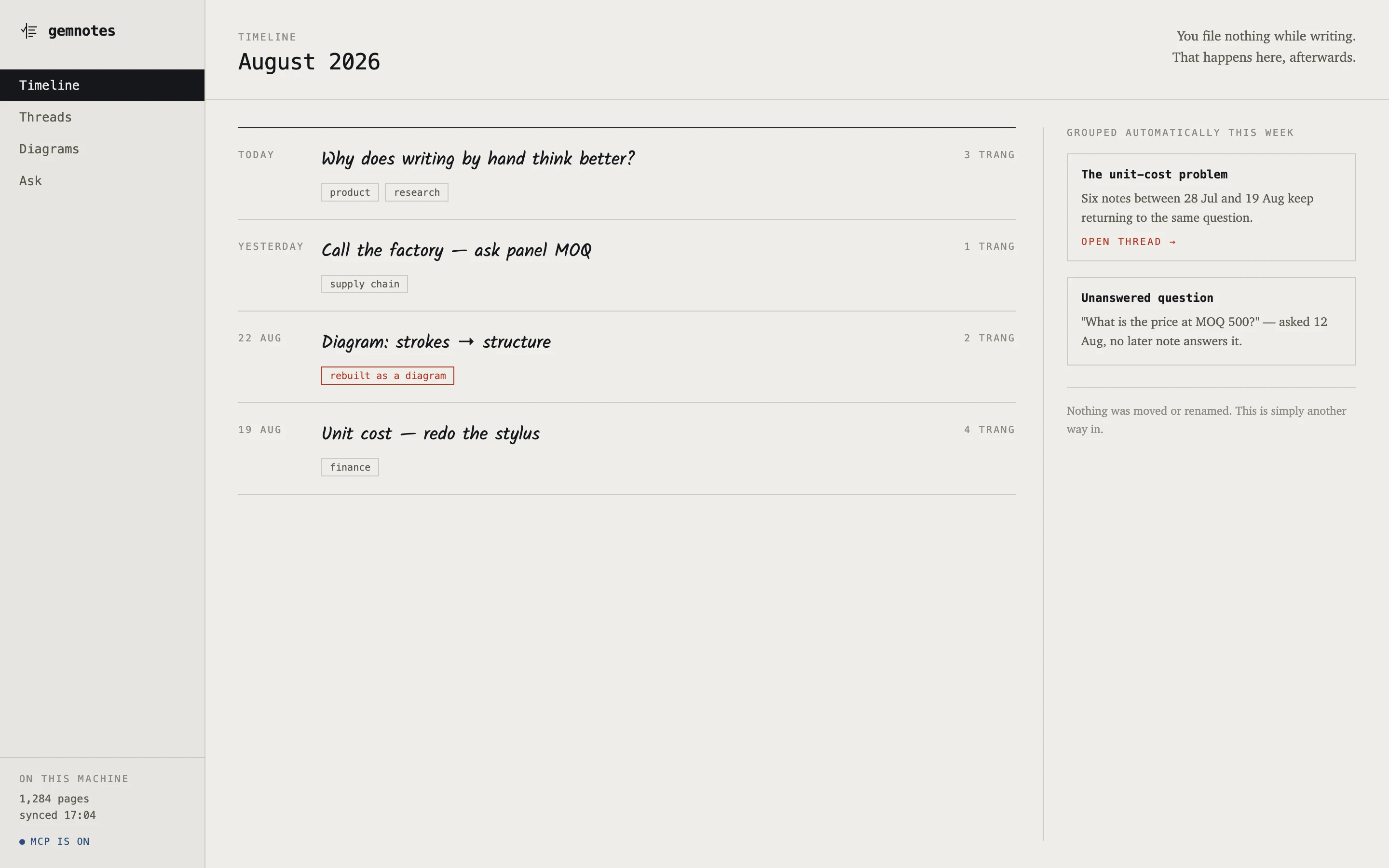
The gemnotes timeline after an archive import, showing dated notes and grouped threads
After the import · everything in one index
If it goes wrong

Three things that actually break.

The tablet can't see the computer

Almost always the two are on different wifi networks — guest network, 5 GHz vs 2.4 GHz band on the same router, or a VPN on the laptop. Same network, no VPN, try again.

Recognition is worse than you expected

It is much better on writing laid out in lines than on a rough scratch page — and on scratch pages we do not have a trustworthy number, so we don't quote one. Small writing was a real bug on our side, now fixed; if a page reads badly, tell us and send it if you can.

You want to leave

Export to SVG, PNG, PDF or .ink and take the folder. The format is documented. This is the least dramatic paragraph on the site and it's the reason anyone can justify pouring five years of notes in.